
Text Cleaner
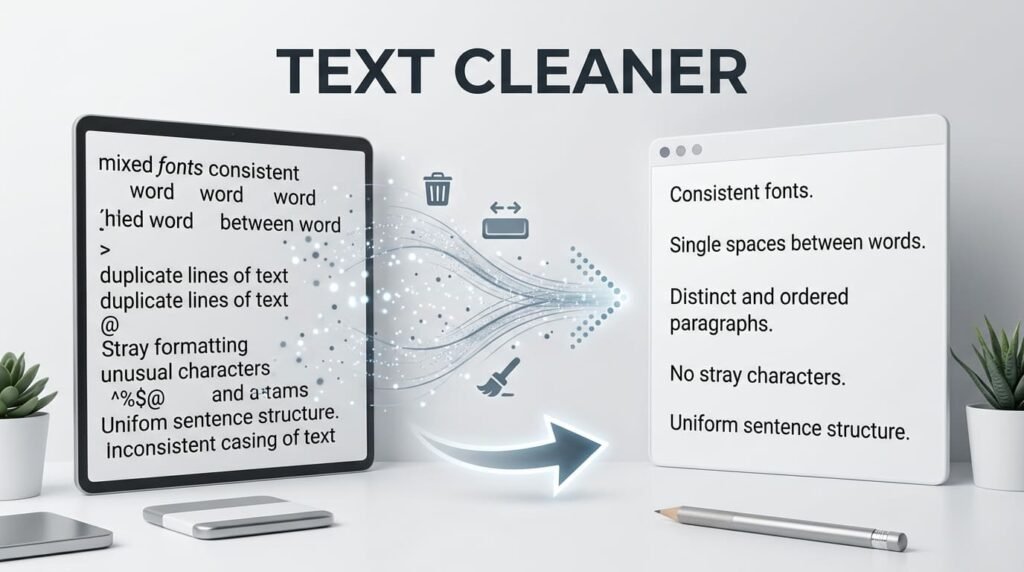
Paste text that came out of Word, a PDF or a webpage and get plain text back, with a list of exactly what was changed, down to the count. Every other text cleaner edits silently, so you never find out what was wrong. It also rejoins the lines a PDF hard-wraps mid-sentence, which is the part that makes PDF text unusable.
What to clean
What changed
Paste something above and the cleaned version appears on the right, with a list of exactly what was changed.
Cleaning is not proofreading. This fixes formatting: tags, spacing, line breaks and the characters that come along for the ride when you copy from somewhere else. It does not change your words, and it never rewrites anything. Everything runs in your browser and no text is uploaded.
Runs in your browser. Nothing uploaded.
How to use it
- Pick where the text came from. Word, a PDF, or strip everything. Each preset turns on the operations that source usually needs.
- Paste. The cleaned version appears alongside as you type.
- Read what changed. Every operation reports a count. That list is the point of the tool, the cleaned text is almost a by-product.
Nothing is uploaded. There’s no share link either, because pasted text is often a draft or a contract and that doesn’t belong in a URL.
What it removes
| Operation | What it fixes | Where it comes from |
|---|---|---|
| Strip HTML tags | Markup pasted as text, plus entities like |
Webpages, rich email, Word |
| Remove bullets and numbering | Leading •, 1., a) |
Pasted lists |
| Rejoin wrapped lines | Sentences chopped every ~80 characters | PDFs |
| Remove every line break | Turns the whole thing into one block | When you need a single field |
| Collapse blank lines | Four blank lines become one | Word, email chains |
| Collapse spaces and tabs | Doubled and tripled spacing | Everywhere |
| Trim trailing space | Invisible space at the end of lines | Everywhere |
| Straighten quotes and dashes | “ ” ’, em dashes and non-breaking spaces |
Word, chatbots |
| Remove invisible characters | Zero-width spaces and friends | Chatbots, web copy |
| Remove URLs, emails, emoji | Exactly that | Optional, off by default |
Fixing text copied from a PDF
A PDF has no paragraphs. It has lines placed at fixed positions on a page. So when you copy from one you get a line break at the end of every visual line, roughly every eighty characters, and your sentences arrive in pieces.
The obvious fix is wrong. Deleting every line break runs all your paragraphs together into one wall of text. The breaks between paragraphs were real; only the ones inside them were artefacts.
So this works out which is which:
- A line ending in
.!?:or a closing quote finished a sentence, that break stays. - A line noticeably shorter than the rest of the block is a paragraph’s last line, that break stays too.
- Anything else was wrapped, so the break becomes a space.
- A line ending in a hyphen means the word was split. The hyphen goes and the halves join with nothing between them, so
imple-+mentedbecomesimplemented.
It uses the median line length, not the average, because one pasted URL or table row would drag an average far enough to misjudge every break in the document.
Removing formatting from Word
Word text carries three separate problems and they need three different fixes.
| What Word gives you | Why it breaks things |
|---|---|
Smart quotes “ ” ‘ ’ |
Break code, CSV imports and search: "cat" and “cat” are different strings |
| Non-breaking spaces | Look identical to a space and fail every trim() and split |
| HTML on paste | Rich-text paste carries markup into fields that display it literally |
Two things worth knowing that aren’t this tool: inside Word, Ctrl+Space clears character formatting from a selection, and Ctrl+Shift+V pastes unformatted in the first place. Use those when you’re still in Word. Use this when the text has already escaped into something else.
Why it tells you what it did
Every other text cleaner edits silently. You paste, you get text back, and you never learn what was wrong with it, or whether anything happened at all.
That’s fine if you just want clean text. It’s useless if you’re trying to work out why something was misbehaving: why a search didn’t match, why a CSV import failed, why a form rejected a field that looked perfectly normal.
So this reports the count for every operation:
| Count | Change |
|---|---|
| 12 | HTML tags stripped |
| 47 | lines rejoined that had been wrapped mid-sentence |
| 89 | runs of spaces collapsed |
| 14 | smart quotes straightened |
| 3 | invisible characters removed |
Those three invisible characters are the answer to a question that would otherwise take an afternoon.
The word count is the reassurance
Words are shown before and after, and two operations legitimately move that number.
Stripping HTML lowers it, and that is correct. In <b>Hi</b> there the tag names b count as words, so the messy version scores 4 and the clean one scores 2. The before figure was inflated by markup; the after figure is the true one.
Removing URLs, emails or emoji lowers it too, because those genuinely delete content.
Everything else, spacing, line breaks, quotes, bullets, leaves it exactly where it was. So if the number moves and you have none of those operations on, something is wrong.
Invisible characters, and text from chatbots
Text copied out of a chatbot or a modern CMS frequently carries characters you cannot see: zero-width spaces, non-breaking spaces, soft hyphens, and quotes that look like quotes but are not. They break code, search, form validation and CSV imports in ways that are genuinely hard to diagnose, because the text looks correct.
The two character operations remove them and count them. That detection is shared with our Invisible Character Detector rather than written twice, so both tools always agree about the same text. If you want the full forensic view of what’s hidden in a string rather than just a clean copy of it, use that one.
What it will not do
It doesn’t proofread, rewrite, translate or summarise. It doesn’t change a single one of your words. It fixes the formatting around them and reports what it touched, that’s the whole job.
It also won’t guess. Removing every line break is a separate, deliberate choice rather than something a preset does for you, because it’s destructive and irreversible once you’ve copied the result away.
Frequently asked questions
How do I remove formatting from text?
Paste it here and pick a preset. Formatting arrives as several separate problems (HTML tags from a webpage, smart quotes and non-breaking spaces from Word, hard-wrapped lines from a PDF, doubled spaces from everywhere) and each needs a different fix. This runs them all and tells you which ones actually applied. In Word itself the shortcut is Ctrl+Space to clear character formatting, or paste with Ctrl+Shift+V to paste unformatted in the first place.
What does it actually change?
Only formatting. It strips HTML tags, decodes entities, removes list bullets, rejoins wrapped lines, collapses runs of spaces and blank lines, trims trailing space, straightens smart quotes and dashes, removes invisible characters, and optionally strips URLs, emails and emoji. It never rewrites a sentence or alters your wording. The word count is shown before and after so you can see the effect: spacing, quotes, bullets and line breaks leave it untouched, while stripping tags lowers it because the markup was being counted as words.
Why does text copied from a PDF have a line break on every line?
Because a PDF has no paragraphs: it has lines placed at fixed positions. When you copy it you get a break at the end of every visual line, roughly every eighty characters, so sentences arrive chopped into pieces. The fix is not to delete every line break, because that would run your paragraphs together. This tool works out which breaks are real by looking at where sentences end and how long each line is compared with the rest of the block, rejoins only the false ones, and undoes hyphenation where a word was split across the break.
How is this different from the other text cleaners?
They clean silently. You paste, you get text back, and you never learn what was wrong with it or whether anything happened at all. This one itemises the edit: twelve HTML tags stripped, forty-seven wrapped lines rejoined, eighty-nine runs of spaces collapsed, three zero-width characters removed. If you are cleaning text to find out why it was misbehaving, the list is the answer and the text is the by-product.
Will it remove the invisible characters in text from an AI chatbot?
Yes. Text copied out of a chatbot often carries non-breaking spaces, zero-width characters and typographic quotes that break code, search and form validation in ways that are impossible to see. Turn on the two character operations and they go, with a count. That detection is shared with our Invisible Character Detector rather than reimplemented, so both tools always agree about the same text: if you want the full forensic view of what is in there, use that one.
Can I remove all the line breaks and get one paragraph?
Yes, that is a separate operation from rejoining wrapped lines. Removing every break turns the whole thing into one block, which is what you want for a form field or a spreadsheet cell. Rejoining wrapped lines is more careful: it keeps real paragraph breaks and joins only the ones a PDF introduced. It is not in any preset because it is destructive and you should choose it deliberately.
Is my text uploaded anywhere?
No. Everything runs inside the page in your browser and nothing is transmitted. There is no share link on this tool either, because pasted text is frequently a draft, a contract or something else you would not put in a URL. Open the network tab and watch if you like: nothing leaves.
Why did the word count change?
Two operations legitimately change it. Stripping HTML lowers the count, because tag names like b and p were being counted as words in the messy version: the before figure was inflated by markup, and the after figure is the true one. Removing URLs, emails or emoji lowers it too, because those genuinely delete content. Everything else (spacing, line breaks, quotes, bullets) never moves it, so if the number shifts and you have none of those operations on, something is wrong and worth telling us about.
What is the largest amount of text it can handle?
5MB, which is roughly eight hundred thousand words. Past that the tool says so rather than freezing the tab. In practice a whole book is well within the limit.
Guides that use this tool
Last updated: September 1, 2026