
List Compare Tool
Paste two lists to get all four answers at once (in both, only in A, only in B, and combined) each with a count. Most tools give you one and make you run it again for the others.
In both 0
Only in A 0
Only in B 0
Combined 0
Runs in your browser. Nothing uploaded.
How to use it
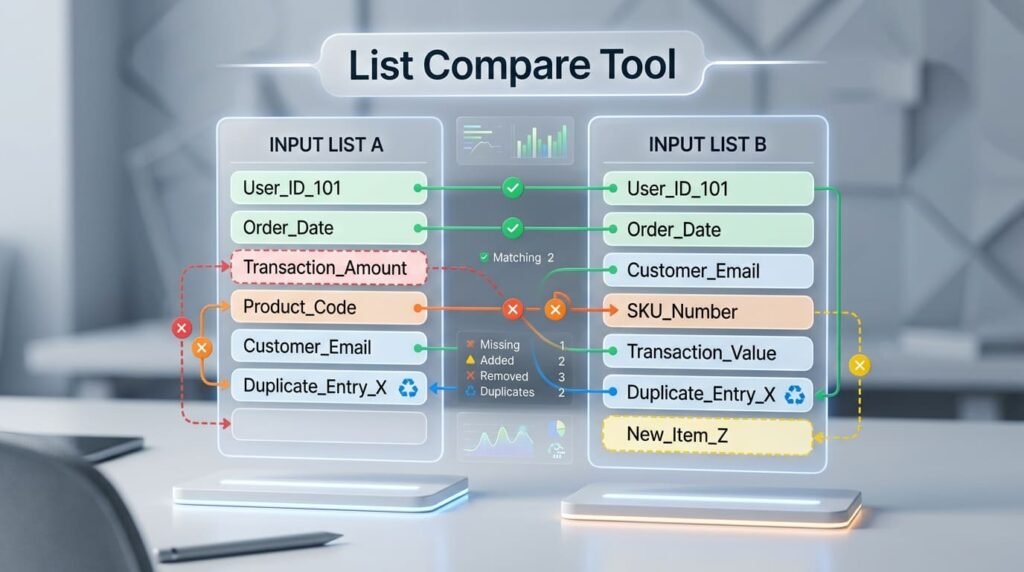
- Paste a list into each box. One item per line by default, or pick a different separator.
- Read all four answers. They appear together and update as you type.
- Copy whichever pane you need. Each has its own copy button.
The four answers, and why you get all of them
Comparing two lists is set arithmetic, and there are exactly four questions you can ask. Most tools answer one and make you run it again for the next. The arithmetic produces all four in the same pass, so there is no reason to hold three of them back.
| Result | Set operation | Answers |
|---|---|---|
| In both | Intersection · A ∩ B | Which customers are on both lists? |
| Only in A | Difference · A − B | Which records were deleted? |
| Only in B | Difference · B − A | Which records were added? |
| Combined | Union · A ∪ B | What is the full distinct list? |
A useful property: In both + Only in A + Only in B always equals Combined. If those numbers do not add up, something is wrong, and since they are all on screen at once, you can check it at a glance rather than trusting the tool.
Duplicates, and why the counts surprise people
Set operations work on distinct items. An email address that appears three times in your list is one member of the set, so it appears once in the results.
That is mathematically right and it looks like data loss if nobody tells you. So each box reports two numbers:
| Reported | Means |
|---|---|
| items | Every line you pasted, duplicates included |
| unique | Distinct values: what the set operations actually use |
If the two differ, a notice names how many items were repeated. That is frequently the most useful thing on the page: a list of “unique” customer IDs that turns out to contain 40 duplicates is a finding in itself.
Worked example
Last month’s subscribers against this month’s:
List A (October)     List B (November)
alice@example.com    bob@example.com
bob@example.com      carol@example.com
dave@example.com alice@example.com| Result | Items | Reading |
|---|---|---|
| In both (2) | alice, bob | Retained |
| Only in A (1) | dave | Churned |
| Only in B (1) | carol | New |
| Combined (4) | alice, bob, dave, carol | Everyone who was ever subscribed |
Two lists, four numbers, no formulas. Note that 2 + 1 + 1 = 4, as it always will.
Case sensitivity
Comparison is case sensitive by default. Apple and apple are different strings, and quietly merging them would be a bad surprise for anything involving codes, identifiers or passwords.
Tick “ignore case” when comparing things where case is incidental, email addresses are the common one, since the domain part is case-insensitive by specification and most providers treat the local part that way too. The results still display the original text exactly as you typed it, so you keep whatever capitalisation your source had.
Separators
One item per line is the default because that is how lists arrive from a spreadsheet column or a database export. Comma, semicolon, space and tab are also available.
A note on comma-separated input: this is a plain split, not a CSV parser. A value containing a quoted comma: "Smith, John" will be split into two items. If your data has quoted fields, paste one column at a time using line mode.
Doing it in Excel
If you are already in a spreadsheet, the formula is genuinely faster than switching to a browser. The standard approach:
| Question | Formula in column A |
|---|---|
| Is this item also in B? | =COUNTIF(B:B, A1) > 0 |
| Which items are only in A? | Same formula, then filter for FALSE |
| Older Excel alternative | =NOT(ISNA(MATCH(A1, B:B, 0))) |
VLOOKUP is the version most people are taught, but COUNTIF is simpler here because you only need to know whether something exists, not to retrieve a value alongside it.
Where the spreadsheet gets awkward is doing all four operations at once, that is four columns of formulas, and the union in particular needs a manual concatenate-and-dedupe. That is the gap this page fills, not the single lookup.
Doing it in code
| Operation | Python | SQL |
|---|---|---|
| In both | a & b |
INTERSECT |
| Only in A | a - b |
EXCEPT |
| Combined | a | b |
UNION |
| In one but not both | a ^ b |
– |
Convert your lists with set(open('file').read().split()) first. Note that Python sets and SQL UNION both discard duplicates and ordering, exactly as this tool does, UNION ALL is the one that keeps duplicates.
What this tool does not do
No fuzzy matching, no CSV column awareness, no sorting. Items match exactly or they do not.
Fuzzy matching is the one people ask for, and it is deliberately absent: “close enough” matching on customer names or addresses produces false pairs that are worse than no answer, because they look authoritative. If you need it, you need a tool that shows you a confidence score and makes you approve each match.
Related tools
To see what changed within lines rather than which lines are present, use text compare. If your lists are actually structured documents, JSON compare and XML compare understand their structure rather than treating them as text. And if two items look identical but stubbornly refuse to match, the case converter will normalise capitalisation: though the more likely culprit is an invisible character, which the invisible character detector will find.
Frequently asked questions
How do I find items that are in both lists?
Paste one list into each box. The "In both" panel is the intersection: every item that appears in A and also in B. You get the other three answers at the same time without running anything again.
What are the four results?
In both is the intersection. Only in A is everything in the first list that is missing from the second. Only in B is the reverse. Combined is the union, every distinct item across both. The three exclusive counts always add up to the combined count, which is a quick way to check the tool agrees with you.
How are duplicates handled?
Set operations work on distinct items, so an item appearing three times in a list counts once in the results. Because that surprises people, the tool also reports how many total and how many unique items each list had, and names anything that appeared more than once.
Is the comparison case sensitive?
Yes by default, because Apple and apple are different strings and silently merging them would be a bad surprise for anything involving codes or identifiers. Tick "ignore case" if you want them treated as the same. The results still display the original text as you typed it.
How do I compare two lists in Excel?
The usual formula is =COUNTIF(B:B, A1)>0 dragged down column A, which tells you whether each item in A appears in B. VLOOKUP and MATCH do the same job. All of them answer one question at a time, which is the reason this page exists, though if you are already in a spreadsheet, the formula is the faster route.
How do I do this in Python or SQL?
In Python, convert both to sets: a & b for the intersection, a - b for only in A, a | b for the union. In SQL, use INTERSECT, EXCEPT and UNION respectively. Both approaches discard duplicates and ordering, exactly as this tool does.
Last updated: August 16, 2026