
WooCommerce Product CSV Checker
Paste a WooCommerce product CSV and every problem is listed by row and column, in plain English. It checks the thing nothing else does: whether each variation actually matches an attribute value its parent offers, which WooCommerce imports without complaint and then leaves unselectable.
Checked in your browser. The file is never uploaded.
Paste a CSV above and the checks run as you type.
| Row | Column | What is wrong |
|---|
These are the checks this tool runs, not a guarantee. WooCommerce can still reject a file for reasons nothing here can see: image URLs it cannot reach, taxonomies that do not exist yet, or plugin fields specific to your store.
Runs in your browser. Nothing uploaded.
How to use it
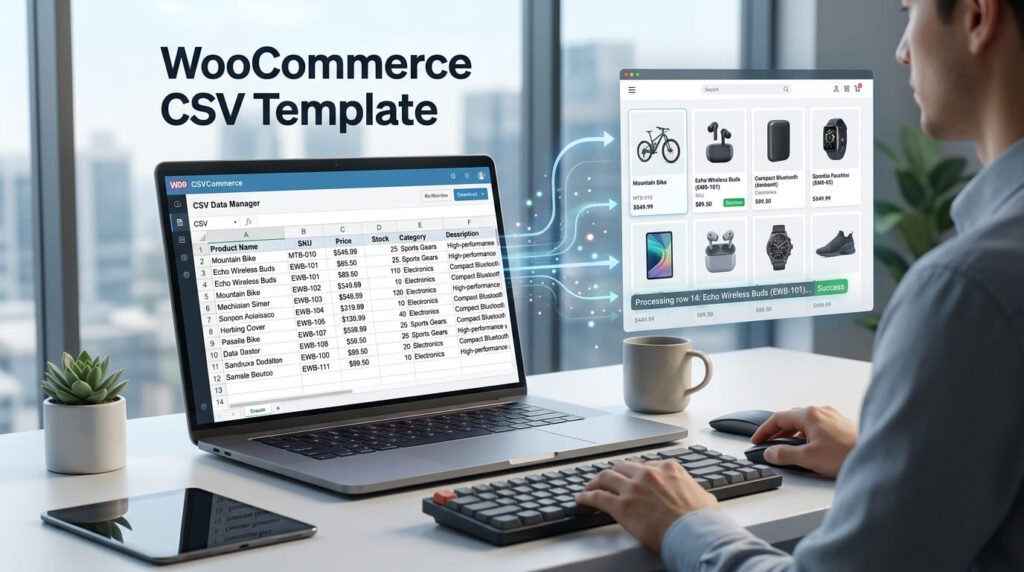
- Paste your CSV, or choose the file. Include the header row, the checker needs it to know what each column is.
- Read the findings, listed by row and column. Errors will stop or corrupt the import; warnings will import but probably aren’t what you meant; notices are just things worth knowing.
- Fix and re-paste. The checks re-run as you type.
- Starting from scratch? Download the blank template instead. It has the right headers and four worked example rows.
Your file is read inside the page and never uploaded. There’s no share link on this tool on purpose, a product CSV holds your whole catalogue, prices and SKUs included, and that doesn’t belong in a URL.
The columns WooCommerce understands
Only Name is genuinely required. WooCommerce documents SKU as required too, but it generates one when the column is missing.
That matters more than it sounds. Shopify rejects a malformed file loudly. WooCommerce tends to accept it and produce something subtly wrong, which is harder to notice and harder to undo.
| Column | Accepts | Watch out for |
|---|---|---|
Name |
Any text | The only true requirement |
SKU |
Any text | Generated if omitted; must be unique |
Type |
simple, variable, grouped, external, variation, virtual, downloadable | Anything else is rejected |
Published |
1, 0, -1, 2 |
Numeric, not TRUE/FALSE |
Regular price / Sale price |
Plain numbers | No currency symbols, no thousands separators |
In stock? |
1 or 0 |
Not yes/no |
Stock |
A number, or parent |
parent only makes sense on a variation |
Visibility in catalog |
visible, catalog, search, hidden | “public” is not one of them |
Categories |
Comma-separated, > for hierarchy |
Clothing > Tops nests |
Images |
Comma-separated URLs | First one becomes the featured image |
Parent |
A parent SKU, or id:123 |
Required on every variation row |
Anything else is fine as custom meta, prefix it with Meta: so the importer maps it. The checker reports unknown columns as notices rather than errors for exactly that reason.
Published is a number, and this is the mistake everyone makes
If your import ran and left everything as a draft, this is why.
WooCommerce reads Published as a number: 1 published, 0 private, -1 draft, 2 pending review. It does not read TRUE and FALSE.
Those come from Shopify, whose product CSV does use TRUE/FALSE, so any file that has been through a Shopify export, or built from a generic e-commerce template, tends to arrive with them. The import doesn’t fail. It just quietly doesn’t publish anything.
The variation trap
This is the one that costs an afternoon, and it’s the reason this tool exists.
A variable product spans several rows. The parent lists every option; each variation gets its own row naming that parent and its own single value.
| Type | SKU | Parent | Attribute 1 value(s) |
|---|---|---|---|
| variable | HOODIE | – | S, M, L |
| variation | HOODIE-S | HOODIE | S |
| variation | HOODIE-M | HOODIE | M |
| variation | HOODIE-XL | HOODIE | XL |
The last row is broken. The parent offers S, M and L. There is no XL.
WooCommerce imports it anyway, without a single error. You get a variation that exists in the database, has a price, and cannot be selected by any customer. Nothing on the screen tells you. You find out when someone asks why they can’t buy the XL.
The checker compares every variation against its parent’s list and reports the mismatch with both values. It also catches variations with no parent at all, parents that don’t exist in the file, and variable products with no variations attached.
Commas inside a value
Escape them with a backslash.
Places, People, Citiesis one category.Places, People, Citiesis three.
This bites hardest in attribute values, a colour called Black, White becomes two separate options without the escape, and then your variations stop matching their parent. The checker understands the escape, so a legitimately escaped comma won’t be reported as a fault.
Worked example
Press “Load an example” and you get a deliberately broken file. Two faults, both common:
| Row | Finding | Why it matters |
|---|---|---|
| 2 | Published is TRUE |
Imports as a draft. Nothing goes live |
| 4 | Variation value XL, parent offers S, M |
Imports silently, variation unselectable |
A real file with these two faults imports “successfully” and produces a hoodie nobody can see and a size nobody can buy.
Updating products instead of creating duplicates
Re-importing a file usually creates a second copy of everything. That is the default, and it is rarely what you want.
Two things prevent it. Include an ID column holding the existing WordPress post ID, or make sure the SKU matches an existing product, WooCommerce matches on either. Then tick Update existing products on the import screen. Miss that checkbox and matching IDs will not save you.
You cannot assign your own ID to a new product. The column only identifies products that already exist, so leave it empty for anything new. The cleanest workflow is to export what you have, edit that file, and import it back with updating switched on, the export already carries correct IDs.
One caution: a partial column set does not merge. If you import a file containing only SKU and Regular price, that is fine and only prices change. But an empty cell in a column you did include can overwrite real data with nothing. Delete columns you are not changing rather than blanking their values.
Exporting first
Products → All Products → Export. You choose which columns to include, which product types, and which categories, then get a CSV with the same structure this tool checks.
Worth knowing before you open it in a spreadsheet: Excel and Google Sheets both like to reformat things. Long numeric SKUs get turned into scientific notation, leading zeros disappear, and dates get rewritten into whatever locale format the machine uses. Import the CSV as text rather than opening it directly, or check the file here afterwards to see what survived.
Common import errors and what they actually mean
| What you see | What it usually is |
|---|---|
| Everything imported as draft | Published holds TRUE/FALSE instead of 1/0 |
| Variations exist but cannot be selected | Variation attribute values the parent does not list |
| Products duplicated on re-import | “Update existing products” not ticked, or no matching SKU/ID |
| Prices ignored or zeroed | Currency symbols or thousands separators in the price columns |
| One category with a strange name | An unescaped comma split it, or > nested it unintentionally |
| Columns shifted halfway down the file | An unclosed quote, or a line break inside a description |
| Images missing | URLs not publicly reachable, or the server blocked the fetch |
| SKU already exists | A duplicate within the file itself, not necessarily on the store |
The first two are the expensive ones, because neither reports an error. The import screen says it worked.
Large catalogues
WooCommerce imports in batches, and on shared hosting a big file will hit a PHP timeout partway through. That leaves you with a half-imported catalogue and no clear record of where it stopped.
Split anything over a few thousand rows and import the pieces. Keep variations with their parents in the same file, a variation whose parent has not been imported yet has nothing to attach to, and you will get the unselectable-variation problem for a completely different reason.
This checker warns above 5MB rather than trying to parse it, for the same class of reason: a file that size will lock up the browser tab. Split it and check the pieces.
Do you need a paid importer?
Often not. The importer built into WooCommerce handles most catalogues, and it is free.
The paid options, Product CSV Import Suite, WP All Import, earn their money on things the built-in one genuinely cannot do: scheduled recurring imports, pulling from a remote URL or XML feed, mapping arbitrary column names to WooCommerce fields, and importing customers or orders rather than products.
If you are importing a product CSV once, or occasionally, from a file you control, the built-in importer plus a check beforehand is the whole job. That is the gap this tool fills, not replacing an importer, just telling you what is wrong before you run one.
What this cannot tell you
It checks structure and values. That’s a real class of problem, and it’s the class that produces silent failures, but it isn’t all of them.
It can’t reach your image URLs to confirm they resolve. It doesn’t know which categories, tags or shipping classes already exist on your store. It can’t see custom fields a plugin expects. And it has no idea whether your prices are right.
So a clean result means one category of problem has been eliminated, not that the import will work. The tool never says a file is valid, because it isn’t in a position to know.
Related tools
For comparing two exports to see what changed between them, list compare handles line-by-line differences and text compare shows them inline. If your product data came out of an API rather than a spreadsheet, JSON compare does the same job structurally. The invisible character detector is worth a pass over any CSV that came from a word processor: zero-width characters in an SKU will break matching in ways nothing visible explains. And case converter handles bulk-normalising product names before import.
Frequently asked questions
Which columns does a WooCommerce product CSV actually require?
Only Name. WooCommerce documents SKU as required too, but it generates one for you when the column is missing, so in practice Name is the single hard requirement. That is much looser than Shopify, where Handle and Title both have to be right. It also means a file can be badly wrong and still import, which is why this tool checks values rather than just column presence.
Why did my import set everything to draft?
Almost certainly because Published contains TRUE or FALSE. WooCommerce expects a number there: 1 for published, 0 for private, -1 for draft and 2 for pending review. TRUE and FALSE are the Shopify convention, and files that have been through a Shopify export or a generic template often carry them. The checker flags this specifically because it is the most common single mistake.
Why are my product variations not selectable after importing?
Usually because a variation offers an attribute value its parent does not list. If the parent row has Attribute 1 value(s) of "S, M" and a variation row says "XL", WooCommerce imports the row without any error and you get a variation nobody can pick. This is the check the tool was built for, and nothing else we found does it. It reports the mismatch with both the variation value and the list the parent actually offers.
How do I write a comma inside a category or attribute value?
Escape it with a backslash. "Places\, People\, Cities" is one value; without the backslashes it is three. This trips people up in category names and in attribute values like "Black\, White". The checker understands the escape, so a legitimate escaped comma will not be reported as a fault.
How do I structure variable products across rows?
The parent row has Type variable and lists every option in Attribute 1 value(s), such as "S, M, L". Each variation then gets its own row with Type variation, a Parent naming the parent SKU (or id:123), and only its own value in the attribute column. Set Stock to the word parent on a variation if it should inherit the parent stock settings.
What do the categories and hierarchy separators mean?
Categories are comma-separated, and a greater-than sign builds hierarchy: "Clothing > Tops" puts Tops inside Clothing. Tags work the same way but have no hierarchy. Images are comma-separated URLs and the first one becomes the featured image.
Is my product data uploaded anywhere?
No. The file is read and checked inside the page using your browser, and nothing is sent to any server. There is no share link on this tool either, deliberately: the input is a whole product catalogue with your prices and SKUs in it, which is not something to put in a URL.
Does passing these checks mean the import will work?
No, and the tool does not claim it. It checks the structure and the values it can see. WooCommerce can still reject a file for reasons nothing here can detect: image URLs it cannot reach, taxonomies that do not exist on your store yet, or custom fields a plugin expects. Treat a clean result as one class of problem eliminated, not a green light.
Last updated: August 25, 2026