
WCAG 2.2 Checklist in Plain English
All 55 WCAG 2.2 Level A and AA success criteria in plain English, the six new ones, and how to test them. Automated tools catch only 30 to 40% of barriers.
WCAG 2.2 Level AA has 55 success criteria: 31 at Level A and 24 at Level AA. This checklist puts every one of them in plain English, grouped the way the standard groups them, with the numbers you need (4.5:1 contrast, 24 by 24 pixel targets, 320 pixel reflow) and a note on how to test each. It’s a reference, not a certificate. Automated tools catch only about 30 to 40% of accessibility barriers, so most of this list needs a person with a keyboard and a screen reader.
WCAG 2.2 quick reference
| Question | Answer |
|---|---|
| Published | W3C Recommendation, 5 October 2023 |
| Success criteria | 86 in all: 31 Level A, 24 Level AA, 31 Level AAA |
| What “AA” means | Every Level A and Level AA criterion: 55 in all |
| New in 2.2 | 9 criteria, 6 of them at A or AA |
| Removed in 2.2 | 4.1.1 Parsing |
| Backwards compatible? | Yes. A page that meets 2.2 AA also meets 2.1 AA and 2.0 AA |
| What most laws cite | WCAG 2.1 AA (EN 301 549 in Europe, the 2024 ADA Title II rule in the US). 2.2 AA covers it |
What’s new in WCAG 2.2
If you already meet 2.1 AA, these six are the work:
| Criterion | Level | In plain English |
|---|---|---|
| 2.4.11 Focus Not Obscured (Minimum) | AA | When something has keyboard focus, a sticky header, cookie banner or chat button can’t hide it completely |
| 2.5.7 Dragging Movements | AA | Anything you can drag, such as a slider or a sortable list, also works with single clicks or taps |
| 2.5.8 Target Size (Minimum) | AA | Click and tap targets are at least 24 by 24 CSS pixels, or have enough space around them |
| 3.2.6 Consistent Help | A | Help (a contact link, chat, phone number) appears in the same place on every page that has it |
| 3.3.7 Redundant Entry | A | Don’t make people type the same information twice in one process; fill it in or let them pick it |
| 3.3.8 Accessible Authentication (Minimum) | AA | Logging in can’t depend on remembering or transcribing something, unless there’s another way. Allow paste and password managers |
The other three new criteria, 2.4.12, 2.4.13 and 3.3.9, are Level AAA.
The WCAG 2.2 AA checklist
Criteria are numbered by principle: 1 is perceivable, 2 operable, 3 understandable, 4 robust. Gaps in the numbering are AAA criteria, which aren’t part of AA.
1. Perceivable
| Criterion | Level | Check that |
|---|---|---|
| 1.1.1 Non-text Content | A | Every meaningful image, icon and chart has a text alternative; decorative images are hidden from screen readers |
| 1.2.1 Audio-only and Video-only (Prerecorded) | A | Audio has a transcript; silent video has a transcript or an audio track |
| 1.2.2 Captions (Prerecorded) | A | Recorded video with sound has accurate captions |
| 1.2.3 Audio Description or Media Alternative (Prerecorded) | A | What’s shown but not said in a video is described, in audio or in a text version |
| 1.2.4 Captions (Live) | AA | Live video with sound has captions |
| 1.2.5 Audio Description (Prerecorded) | AA | Recorded video has audio description where the visuals carry information |
| 1.3.1 Info and Relationships | A | Headings, lists, tables and form labels are marked up as such, not just styled to look like them |
| 1.3.2 Meaningful Sequence | A | The reading order in the code makes sense when the styling is removed |
| 1.3.3 Sensory Characteristics | A | Instructions don’t rely only on shape, position, size or sound (“click the round button on the right”) |
| 1.3.4 Orientation | AA | The page works in portrait and landscape, unless one orientation is essential |
| 1.3.5 Identify Input Purpose | AA | Fields for personal details use the right autocomplete values, so browsers can fill them |
| 1.4.1 Use of Color | A | Colour is never the only way information is shown: errors, links in text, required fields, chart series |
| 1.4.2 Audio Control | A | Sound that plays on its own for more than 3 seconds can be paused or turned down |
| 1.4.3 Contrast (Minimum) | AA | Text contrast is at least 4.5:1, or 3:1 for large text (24px, or 18.66px bold) |
| 1.4.4 Resize Text | AA | Text zooms to 200% without anything being cut off or lost |
| 1.4.5 Images of Text | AA | Text is real text, not a picture of it, except logos |
| 1.4.10 Reflow | AA | At 320 CSS pixels wide (400% zoom on a 1280px screen) the page scrolls one way only, with nothing lost |
| 1.4.11 Non-text Contrast | AA | Input borders, focus rings, icons and chart lines contrast at least 3:1 with what’s next to them |
| 1.4.12 Text Spacing | AA | Nothing breaks when line height is 1.5, paragraph spacing 2, letter spacing 0.12 and word spacing 0.16 times the font size |
| 1.4.13 Content on Hover or Focus | AA | Tooltips and pop-ups can be dismissed without moving focus, can be hovered over, and stay until dismissed |
2. Operable
| Criterion | Level | Check that |
|---|---|---|
| 2.1.1 Keyboard | A | Everything works with a keyboard alone: menus, forms, modals, carousels, custom controls |
| 2.1.2 No Keyboard Trap | A | Keyboard focus can always move away from any element |
| 2.1.4 Character Key Shortcuts | A | Single-key shortcuts can be turned off or remapped, or only work when that control has focus |
| 2.2.1 Timing Adjustable | A | Time limits can be turned off, adjusted or extended, with a warning first |
| 2.2.2 Pause, Stop, Hide | A | Anything that moves, scrolls or updates automatically for more than 5 seconds can be paused |
| 2.3.1 Three Flashes or Below Threshold | A | Nothing flashes more than three times a second |
| 2.4.1 Bypass Blocks | A | A “skip to content” link or proper landmarks let people skip repeated navigation |
| 2.4.2 Page Titled | A | Every page has a title that says what it is |
| 2.4.3 Focus Order | A | Tabbing moves through the page in an order that makes sense |
| 2.4.4 Link Purpose (In Context) | A | Link text, with its sentence, says where it goes. No bare “click here” |
| 2.4.5 Multiple Ways | AA | There’s more than one way to find a page: navigation, search, a sitemap |
| 2.4.6 Headings and Labels | AA | Headings and labels describe what follows |
| 2.4.7 Focus Visible | AA | You can always see which element has keyboard focus |
| 2.4.11 Focus Not Obscured (Minimum) | AA | The focused element isn’t completely hidden by sticky headers, footers or overlays |
| 2.5.1 Pointer Gestures | A | Pinch, swipe and multi-finger gestures have a single-pointer alternative, such as buttons |
| 2.5.2 Pointer Cancellation | A | Actions fire when you release, not when you press, so a slip can be cancelled |
| 2.5.3 Label in Name | A | A control’s accessible name contains its visible label, so voice users can say what they see |
| 2.5.4 Motion Actuation | A | Shake or tilt features also work with a normal control, and can be turned off |
| 2.5.7 Dragging Movements | AA | Dragging always has a click or tap alternative |
| 2.5.8 Target Size (Minimum) | AA | Targets are at least 24 by 24 CSS pixels, or spaced so a 24px circle on each doesn’t overlap another; links inside sentences are exempt |
3. Understandable
| Criterion | Level | Check that |
|---|---|---|
| 3.1.1 Language of Page | A | The page’s language is set with the lang attribute |
| 3.1.2 Language of Parts | AA | Passages in another language are marked with their own lang |
| 3.2.1 On Focus | A | Moving focus onto something never changes the page or opens a new window by itself |
| 3.2.2 On Input | A | Changing a field doesn’t cause a surprise change of context, such as submitting a form, without warning |
| 3.2.3 Consistent Navigation | AA | Repeated navigation appears in the same order on every page |
| 3.2.4 Consistent Identification | AA | Things that do the same job are labelled the same way everywhere |
| 3.2.6 Consistent Help | A | Help options are in the same relative place on every page |
| 3.3.1 Error Identification | A | Errors are described in text, and the field in error is identified |
| 3.3.2 Labels or Instructions | A | Fields have labels, and required formats are explained before people get them wrong |
| 3.3.3 Error Suggestion | AA | When you know how to fix an error, say so: “Enter the date as DD/MM/YYYY” |
| 3.3.4 Error Prevention (Legal, Financial, Data) | AA | Submissions that commit money, legal agreements or data can be checked, corrected or reversed |
| 3.3.7 Redundant Entry | A | Information already given in the same process is filled in or selectable, not typed again |
| 3.3.8 Accessible Authentication (Minimum) | AA | No memory or puzzle test to log in unless there’s an alternative; paste and password managers work |
4. Robust
| Criterion | Level | Check that |
|---|---|---|
| 4.1.2 Name, Role, Value | A | Custom controls tell assistive technology what they are, what they’re called and what state they’re in |
| 4.1.3 Status Messages | AA | Messages like “Added to basket” or “3 results” are announced by screen readers without moving focus |
How to test against this checklist
- Run an automated checker first. It finds missing alt text, low contrast, empty links and missing labels quickly. But automated tools catch only about 30 to 40% of barriers. They can tell that an image has alt text, not whether the text is any use.
- Put the mouse away. Tab through every page and complete every task: sign up, search, check out. Watch for invisible focus, focus hidden under a sticky header, and anything you can’t reach or can’t leave.
- Use a screen reader. NVDA on Windows is free; VoiceOver is built into Mac and iPhone. Listen to headings, form labels, error messages and status updates.
- Zoom to 400% and narrow the window to 320 pixels. Check for sideways scrolling and overlapping text.
- Check colour. Test text and interface colours against 4.5:1 and 3:1 with a contrast checker, in light and dark mode if you have both.
- Write down what you find, including what you haven’t fixed yet. That record becomes your accessibility statement.
The failures that show up most
- Low-contrast text, especially grey placeholder text and text on images.
- Images and icon buttons without text alternatives.
- Form fields with a placeholder but no real label.
- Focus outlines removed in CSS with nothing to replace them.
- Custom dropdowns, modals and tabs that a keyboard can’t operate.
- Cookie banners and chat widgets that cover the focused element: the new 2.4.11 failure.
- Small, tightly packed icons and links: the new 2.5.8 failure.
Which version does the law require?
Most laws point to WCAG 2.1 Level AA, directly or through a standard. In the EU, EN 301 549 incorporates it, and that standard is the usual route to meeting the European Accessibility Act. Our EAA scope checker gives an indicative read on whether the act applies to you. In the US, the Department of Justice’s 2024 rule for state and local government websites under ADA Title II adopts WCAG 2.1 AA. Because WCAG 2.2 is backwards compatible, aiming for 2.2 AA meets 2.1 AA too, and keeps you ahead of the next update.
When you publish what you’ve tested, the accessibility statement generator builds the statement around the standard you chose and the known issues you list.
Frequently asked questions
How many success criteria are in WCAG 2.2?
86: 31 at Level A, 24 at Level AA and 31 at Level AAA. Level AA conformance means meeting the 55 A and AA criteria.
What changed from WCAG 2.1 to 2.2?
Nine criteria were added, six of them at A or AA: Focus Not Obscured, Dragging Movements, Target Size, Consistent Help, Redundant Entry and Accessible Authentication. 4.1.1 Parsing was removed.
What is the minimum target size in WCAG 2.2?
24 by 24 CSS pixels at Level AA, unless the target has enough space around it, is inside a sentence, or its size is set by the browser. Level AAA asks for 44 by 44.
Can a tool certify my site as WCAG compliant?
No. Automated tools find only about 30 to 40% of barriers, and no tool can confirm conformance on its own. A full check needs manual testing with a keyboard and assistive technology.
Sources
- W3C, Web Content Accessibility Guidelines (WCAG) 2.2, W3C Recommendation, and “What’s New in WCAG 2.2”.
- W3C, Understanding WCAG 2.2: the intent and exceptions for each success criterion.
- ETSI EN 301 549, Accessibility requirements for ICT products and services.
- US Department of Justice, 2024 final rule on web and mobile accessibility for state and local governments under Title II of the ADA.
Checked 9 November 2026. This checklist summarises the standard in plain words; the W3C text is the authority, and its exceptions matter. It’s educational, not legal advice, and using it doesn’t make a site compliant.
Tools in this guide
Colour Contrast Checker
Check colour contrast against WCAG 2.2, a pair or a whole palette.
Accessibility Statement Generator
Generate a standards-referenced accessibility statement.
EAA Scope Checker
Check whether the European Accessibility Act applies to you.
All of them run in your browser. Nothing uploaded.
More guides
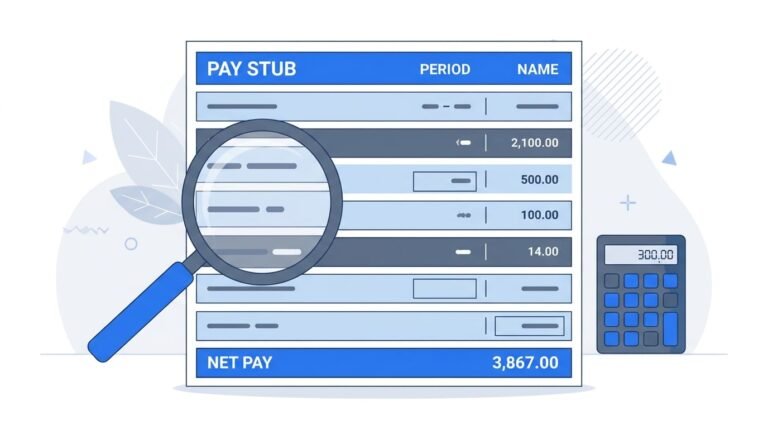
How to Read a Pay Stub, Line by Line
Gross pay, then pre-tax deductions, taxes and after-tax deductions, then net pay. A real stub explained line by line, the common codes, and how to check it.

Roth IRA vs Traditional IRA: Which Is Better for You?
Tax now or tax later. The two tax rates decide it, worked out with real numbers, then the 2026 income limits, early access and required withdrawals.
Tool: Roth IRA Calculator
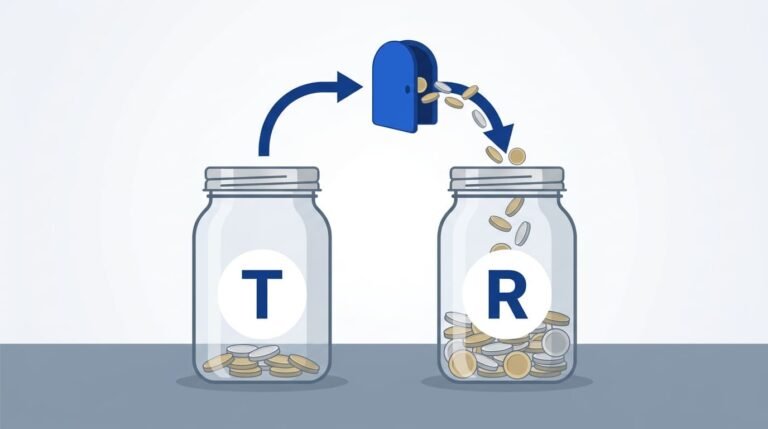
Backdoor Roth IRA: How It Works, Step by Step
Too much income for a Roth? Contribute to a traditional IRA without the deduction, then convert. The six steps, Form 8606, and the pro-rata rule with numbers.
Tool: Roth IRA Calculator
Last updated: November 9, 2026